Now Reading: 9 Best Adobe Illustrator Alternatives in 2026 (Free & Paid)
-
01
9 Best Adobe Illustrator Alternatives in 2026 (Free & Paid)

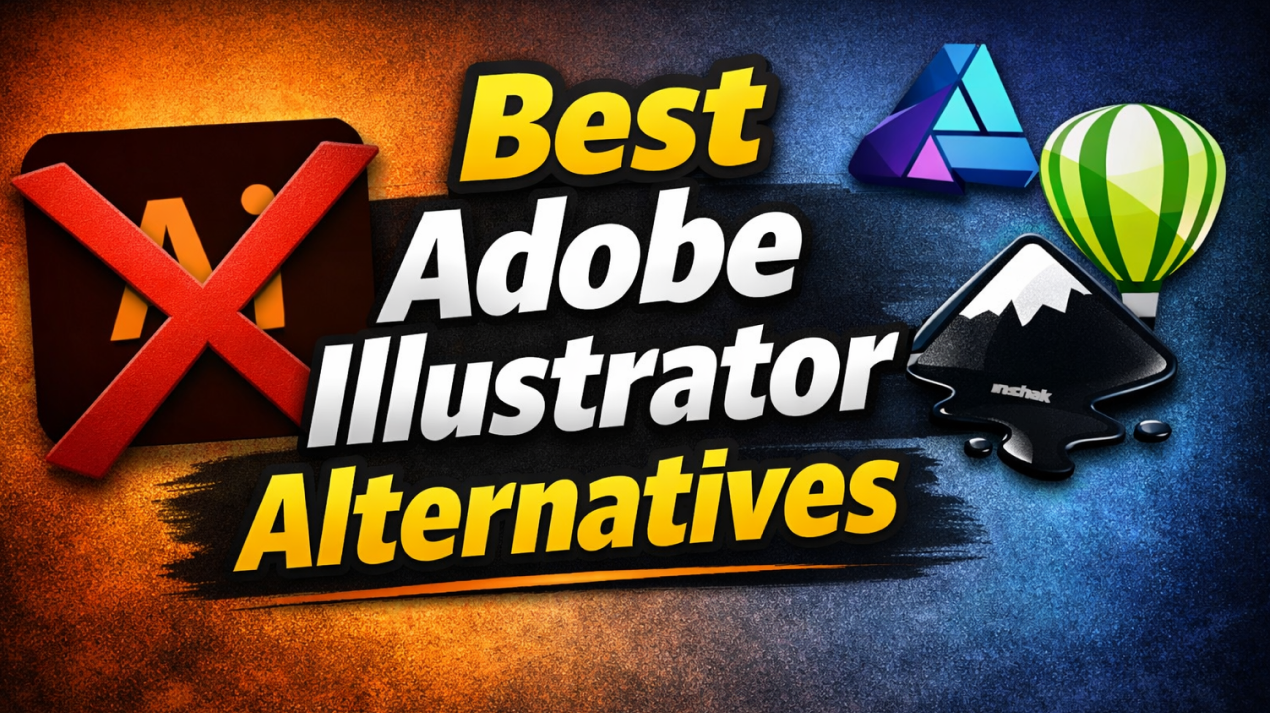
There is no doubt that Adobe Illustrator has long been the industry standard for vector design, but it’s no longer the only strong option available. Designers today work across different devices, budgets, and workflows, which has led to a growing demand for flexible and affordable alternatives.
But finding the best alternative to Adobe Illustrator in this noisy market can be challenging. That’s why we’ve chosen some of the best options for you and mentioned them in clear detail.
We not only shared their strengths but also their weaknesses so that you can get a pretty good idea whether a tool can fit your needs or not.
What is Adobe Illustrator
In simple terms, Adobe Illustrator is a professional vector graphics software that is used for creating logos, illustrations, icons, typography, and complex graphic designs. It works on a vector-based system, meaning designs can be scaled infinitely without losing quality.
Illustrator is widely used in branding, print design, UI assets, and digital illustration because of its precision tools, advanced pen controls, and deep color management.
What makes it even better is that it can easily integrate with Adobe’s Creative Cloud ecosystem, which allows smooth workflows with Photoshop, InDesign, and After Effects.
1. Affinity Designer
Affinity Designer is a professional vector design tool that is known for its powerful performance and one-time pricing model. It is widely used for branding, illustration, UI design, and print work, and can run smoothly even on modest hardware, and supports both vector and raster workflows within a single interface.
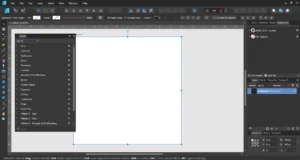
When you start using it, you’ll surely appreciate its clean layout, fast rendering engine, and compatibility with major file formats like AI, PSD, SVG, and PDF.
What Makes Affinity Designer Unique?
Affinity Designer’s uniqueness is that it can have vector and raster design modes in one workspace, which means you can instantly switch without changing applications. Its performance-focused engine also delivers real-time previews, smooth zooming, and precise control, even on complex artwork.
Pros
- One-time purchase with no subscription.
• Excellent performance on low-end systems.
• Vector and raster tools in one app.
• Clean, intuitive interface.
• Strong file compatibility.
Cons
- No native cloud collaboration.
• Smaller plugin ecosystem.
• Limited animation features.
• Fewer learning resources than Adobe.
• No built-in asset marketplace.
Who is Affinity Designer best suited for?
Affinity Designer is best suited for those who want professional-grade vector tools without recurring costs or heavy system requirements.
2. CorelDRAW
CorelDRAW is a long-standing vector design suite that is widely used in print, signage, and branding industries. It offers powerful layout tools, deep typography controls, and strong color management features. It is especially popular among print professionals because of its CMYK handling and page layout flexibility.
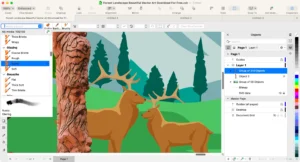
The software supports both subscription and one-time licensing options, which makes it accessible to different user preferences. Its interface is also customizable, which means you can tailor your workflows for specific design tasks.
What Makes CorelDRAW Unique?
CorelDRAW stands out for its print-focused workflow, advanced typography tools, and flexible licensing options. It also offers strong support for large-format printing and production-ready outputs.
Pros
- Excellent print and layout tools.
• Flexible licensing options.
• Strong typography controls.
• Customizable workspace.
• Reliable color management.
Cons
- Interface feels dated to some users.
• Limited cloud collaboration.
• Heavier system requirements.
• Smaller UI design focus.
• Learning curve for beginners.
Who is CorelDRAW best suited for?
CorelDRAW is ideal for those who prioritize production accuracy, typography, and layout over collaborative or web-based design.
3. Inkscape
Inkscape is a free, open-source vector graphics editor that is mainly used for illustration, icon design, and SVG creation. It supports industry-standard formats like SVG, PDF, EPS, and AI. Not only that, it offers powerful path tools, node editing, and extensions that can expand functionality.
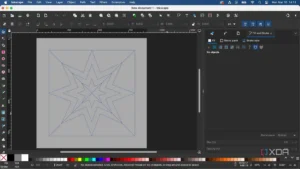
While its interface may feel outdated in some instances, it is still a strong option for those who want full vector capabilities without paying high cost. It is also worth noticing that a global open-source community actively maintains Inkscape.
What Makes Inkscape Unique?
Inkscape’s biggest strength is being completely free and open-source while still offering advanced vector editing tools. Its SVG-first approach makes it excellent for web and scalable graphics.
Pros
- Completely free and open-source.
• Strong SVG support.
• Active community development.
• Cross-platform availability.
• Extensible with plugins.
Cons
- Slower performance on complex files.
• Dated interface design.
• Limited native CMYK support.
• Fewer professional integrations.
• Steeper learning curve.
Who is Inkscape best suited for?
Inkscape is best for those who need capable vector tools and are comfortable trading a polished interface for flexibility.
4. Figma
Figma is a browser-based design platform that is primarily known for UI and interface design. While it is not a traditional Illustrator replacement, it offers strong vector drawing tools, layout systems, and real-time collaboration, which gives it an edge in some cases.
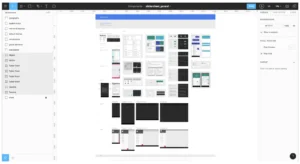
It allows you and your team to design, comment, and iterate together in one shared space. At the same time, Its cloud-first approach makes sure to eliminate file version issues and supports seamless handoff to developers.
What Makes Figma Unique?
Figma’s real-time collaboration and browser-based workflow set it apart from many of its competitors. It Figma, multiple team members can design simultaneously, which makes it ideal for teams of different sizes.
Pros
- Real-time collaboration.
• No installation required.
• Strong UI and vector tools.
• Easy developer handoff.
• Cross-platform access.
Cons
- Limited print design features.
• Requires internet connection.
• Not ideal for illustration-heavy work.
• Subscription for advanced features.
• Fewer raster tools.
Who is Figma best suited for?
Figma is best suited for UI designers, product teams, and startups that prioritize collaboration, rapid prototyping, and digital interface design.
5. Sketch
Sketch is a macOS-only vector design tool that is focused on UI and digital product design. It offers clean vector tools, symbols, and reusable components that can streamline interface workflows.
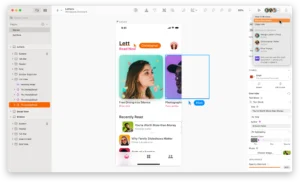
It can even integrate smoothly with many third-party plugins and handoff tools, which makes it a popular choice in design systems and product teams. While its scope is narrower than Illustrator’s, it works best at screen-based design tasks.
What Makes Sketch Unique?
Sketch is optimized specifically for macOS and UI design, offering lightweight performance, reusable symbols, and a strong plugin ecosystem tailored for interface workflows. All of that makes it a unique choice for Mac users.
Pros
- Optimized for macOS.
• Excellent UI design tools.
• Strong plugin ecosystem.
• Lightweight and fast.
• Design system-friendly.
Cons
- macOS only
• Limited print capabilities
• Fewer illustration tools
• Subscription required
• Less versatile than Illustrator
Who is Sketch best suited for?
Sketch is best for macOS-based UI designers and product teams that are focused on interface design, design systems, and screen-first digital products.
6. Vectr
Vectr is a lightweight, browser-based vector design tool that is built for simplicity and accessibility. It focuses on basic vector creation, such as icons, logos, and simple illustrations, without overwhelming you with advanced controls.
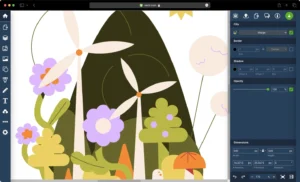
It works directly in the browser and also offers a desktop app, which makes it easy for anyone to start designing without setup. While it may lack advanced illustration features, its clean interface and real-time collaboration make it appealing for beginners and quick design tasks.
What Makes Vectr Unique?
Vectr’s biggest strength is its simplicity combined with cloud-based collaboration. It removes complexity from vector design and allows everyone to create, share, and edit designs quickly without prior design software experience.
Pros
- Very easy to learn.
• Browser-based access.
• Real-time collaboration.
• Free to use.
• Lightweight interface.
Cons
- Limited advanced tools.
• Not suitable for complex illustrations.
• Basic export options.
• Fewer customization controls.
• Weak print support.
Who is Vectr best suited for?
Vectr is best for beginners, students, and non-designers who need a simple tool for basic vector graphics without investing time in complex software.
7. Boxy SVG
Boxy SVG is a vector graphics editor focused on creating and editing SVG files. It runs in the browser and as a desktop app, and offers precise control over SVG paths, shapes, and attributes. It is popular among web designers and developers who need clean, standards-compliant SVG files.
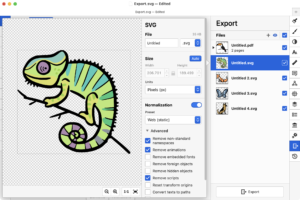
Its interface is minimal, and the tool emphasizes accuracy over creative illustration features. It is also worth noticing that it integrates well with web workflows where SVG optimization and structure matter more than artistic tools.
What Makes Boxy SVG Unique?
Boxy SVG stands out for its SVG-first approach, providing deep control over SVG elements and code-level accuracy, which is ideal for web and UI-focused projects.
Pros
- Excellent SVG accuracy.
• Clean, minimal interface.
• Web and desktop versions.
• Developer-friendly exports.
• Lightweight performance.
Cons
- Limited illustration tools.
• Not ideal for print design.
• Smaller feature set.
• Subscription for advanced use.
• Less beginner-friendly.
Who is Boxy SVG best suited for?
Boxy SVG is best suited for those who work heavily with SVG files and need precision rather than creative illustration features.
8. Linearity Curve
Linearity Curve (formerly Vectornator) is a modern vector design app that is built primarily for macOS and iPadOS. It offers powerful vector tools with an emphasis on performance, touch support, and intuitive gestures. It is primarily used for illustration, branding, and UI assets, especially by designers working on Apple devices.
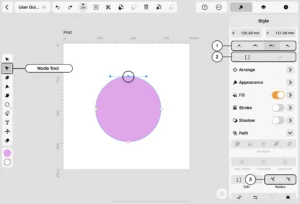
It’s also worth noticing that its interface feels modern and fluid, which makes it easy to use for both beginners and professionals. The app also supports real-time collaboration and cloud syncing, which is a bonus.
What Makes the Linearity Curve Unique?
Linearity Curve’s uniqueness is that it combines professional vector tools with touch-first interactions and Apple Pencil support, which makes it one of the best vector design experiences on iPad and macOS devices.
Pros
- Optimized for Apple devices.
• Smooth performance.
• Touch and Pencil support.
• Modern interface.
• Strong illustration tools.
Cons
- Limited cross-platform support.
• Smaller plugin ecosystem.
• Less common in print workflows.
• Learning curve for advanced tools.
• Fewer export presets.
Who is Linearity Curve best suited for?
Linearity Curve is ideal for those who want a modern, high-performance vector tool with strong illustration and UI capabilities.
9. GIMP
GIMP is a free, open-source graphics editor that is primarily known for raster image editing. While it is not a pure vector tool, it offers limited vector path support for tasks like icon tracing and shape creation.
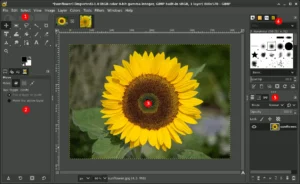
It is highly extensible through plugins and scripts, which makes it even more powerful for image manipulation. Designers often use it with vector tools rather than use it as a full Illustrator replacement.
Its flexibility and cost-free nature keep it widely used.
What Makes GIMP Unique?
GIMP’s open-source ecosystem and deep customization options make it unique and one-of-a-kind. You can easily tailor your software extensively to fit specific workflows without licensing restrictions.
Pros
- Completely free.
• Open-source flexibility.
• Powerful image editing.
• Extensive plugin support.
• Cross-platform.
Cons
- Limited vector capabilities.
• Can be challenging to understand for beginners.
• Outdated interface feel.
• Weak print workflows.
• Not vector-focused.
Who is GIMP best suited for?
GIMP is best for designers who mainly work with raster images and need occasional vector path tools without paying for commercial software.
Conclusion
There is no doubt that Adobe Illustrator is still a powerful tool and is an industry standard, but it is no longer the only choice for vector design. The alternatives we’ve mentioned above serve very different needs, from professional branding and UI design to lightweight SVG editing and beginner-friendly tools.
Ultimately, the best choice depends on your workflow and budget. And that’s the reason why we’ve talked about every tool in detail, so that you can be sure which tool can best serve your needs.
FAQ’s
- What is the best Adobe Illustrator alternative for beginners?
Affinity Designer and Vectr are both beginner-friendly Adobe Illustrator alternatives.
- Which Illustrator alternative is best for UI and web design?
Figma and Sketch are best for UI and web-focused design workflows.
- Is there a free alternative to Adobe Illustrator?
Yes, Inkscape and GIMP are free, open-source Adobe Illustrator alternatives.
- Which alternative works best on iPad?
Linearity Curve is one of the best vector design tools for iPad users.
- Can these tools open Adobe Illustrator files?
Many alternatives support AI file imports, but compatibility may vary depending on file complexity.